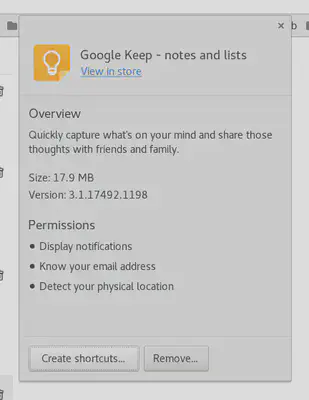
This is a quick how-to for regenerating the .desktop shortcuts
associated with Google Chrome Apps or Extensions.
Rant
Being able to launch your favorite Chrome App/Extension straight
from your desktop manager’s launcher is a big win in my book.
My typical go-to is Google Keep. With my Gnome Shell setup, all I
have to do is hit the Super key on my keyboard to bring up the
searchable Gnome launcher, ever so slightly start typing keep,
and pound the enter key. Presto, I’m in my notes taking app.
Every once in a while, a desktop shortcut disappears
(possibly self inflicted) or becomes corrupt.
The monotony of traversing through Chrome, to the Apps menu,
and clicking on the correct App/Extension tile haunts me to this day.
This article is needed due to the dearth of information
related to Chrome Extension desktop shortcuts for Linux
desktop environments. I also needed a good tutorial to kickoff my Posts section.
Here is how to fix it
Method 1
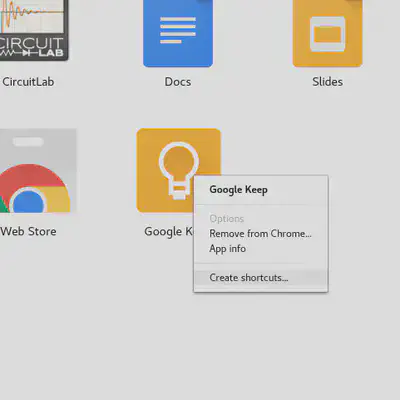
Go to the All Apps page.
This is also the URL chrome://apps.
Right click on the App or Extension you wish to regenerate a shortcut for.
Click Create shortcuts...
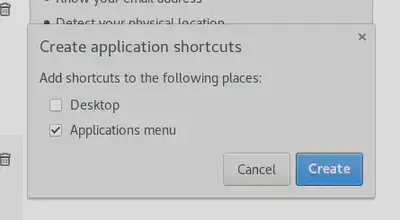
Deselect Desktop, select Application menu, and click Create.
A Desktop shortcut is pointless when you have Desktop icons disabled in Gnome Shell. [default for Gnome Shell]
Method 2
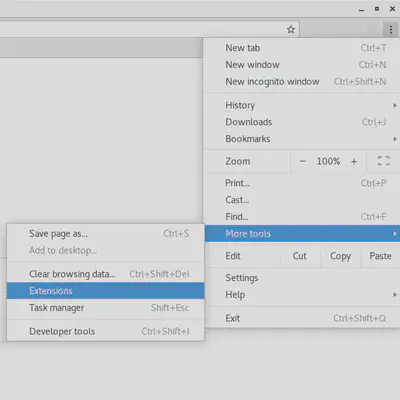
Press the three vertical dots in the top right of the browser.
Navigate to More tools and then Extensions
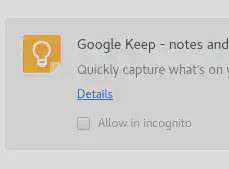
Click the Details linked text on the App or Extension you wish to regenerate a shortcut for.
Click Create shortcuts...
Deselect Desktop, select Application menu, and click Create.
A Desktop shortcut is pointless when you have Desktop icons disabled in Gnome Shell. [default for Gnome Shell]